User Manual
For TeCluster 1.0.19 · September 2026
Cluster, guidance, search, settings — every element on screen, explained with screenshots.
Download as PDF Setup Guide → New here? Start with the Setup Guide.
1. The cluster at a glance
Mount the phone landscape behind the wheel and you get the real cluster layout. The screen stays on while the app is open.
Centre: current speed and unit (KM/H or MPH). The arc fills blue as you go faster. Above it the gear (P R N D), with the current gear highlighted.
Left bar (regen): fills green from the bottom when regenerative braking is active. The 70 mark is the regen limit in kW.
Right bar (battery): charge fills green over a 0·80·100 scale, with the percentage and range below.
Top left: the clock. Left panel: ODO (odometer) and this trip's distance, time and average speed.
Top right: cabin and outside temperature.
Buttons: Settings (gear), Car info (My Car Info), Destination search (magnifier), Open Map (map). While the car is parked in P, a Vehicle Controls button also appears under search and map (section 10-1).
When charging starts: the moment you plug in, the centre becomes a charging view — battery level in large type, then the power coming in (kW) with volts and amps, and the time left to the car's charge limit. It returns to the speedometer by itself when charging ends. (While connected over Bluetooth.)
2. Portrait layout
Turn the phone upright for the portrait layout: speed on top, regen and battery bars at the sides, trip info below. In portrait the iOS status-bar clock is used instead of the app's own.
3. Night mode
The screen dims automatically after sunset and in tunnels during the day. The night display adds a sun-flare to the sweep.
Under Settings → Display and language → Night mode choose Auto / Always light / Always dark.
4. How speed and power are calculated
With Bluetooth connected, the car's own speed is shown as-is, several times a second — the same figure as the car's cluster. Only without Bluetooth does the phone's GPS take over, calibrated to the car's cluster; the calibration is learned automatically while Bluetooth is connected.
Where GPS drops out, such as tunnels, the car's value carries on and blends back smoothly afterwards.
Power (kW) is estimated from GPS acceleration; with Bluetooth the car's real value is used. Acceleration is blue, regen is green.
5. The guidance screen
Left: a compact cluster (gear, speed, regen, battery). Right: the map, with cabin/outside temperature above it and the close (×) and guidance-settings buttons at top left.
Right card: next-turn arrow and distance, the turn after that (small arrow), road name and instruction, arrival time, remaining time and distance. Two turns within 200 m are announced as one, e.g. "turn right, then immediately left".
Speed cameras: a camera icon and speed-limit disc appear with the distance. The disc fills red when you are over the limit. Inside an average-speed zone it shows 'Section' instead. Cameras without a limit (red-light cameras) show only the camera icon and distance.
Bottom line of the cluster: arrival time, remaining time and distance. On the Connected plan, when the car is navigating to the same place, the car's own arrival time and battery at arrival are shown too.
Voice: announces 300 m and 50 m before each turn. Toggle items under Settings → Voice and alerts.
6. Portrait guidance
Upright, the map is on top and the cluster below; the guidance card overlays the top of the map.
7. Picking up guidance started in the car
Set a destination on the car's screen and within seconds the app guides to the same place — read directly over Bluetooth, or via telemetry on the Connected plan.
On the Free plan you get 20 of these handoffs per calendar month (phone calendar; they refill on the 1st). The same place (within 300 m) again within 6 hours counts once, and guidance you start on the phone (search or share) never counts. With 5 or fewer left the app tells you how many remain; once they are used up, a destination set in the car no longer starts guidance, and a notice at the bottom of the cluster opens the plans screen. The Connected plan is unlimited.
When the car ends guidance or arrives, the app closes it too and returns to the cluster.
If the app is already guiding to almost the same place (within 300 m) it does not restart.
To just see the map, tap the map button on the cluster — it opens the current-location map without guidance.
8. Destination search and favourites
Tap the magnifier on the cluster to open the search card: search box, your favourites list, then the last eight destinations.
Search: suggestions appear as you type, with the distance from you. Tap one to open the confirmation card, then Navigate here.
Favourites: tap the star on the confirmation card and the name prompt (Home, Work) opens right there. Up to ten stay pinned as a list under the search box; long-press one to rename or remove. The name is used on the guidance screen and as the car's destination name.
Recent: the last eight places you navigated to. Clear removes them.
On the Connected plan the destination is also sent to the car. When it appears on the car's screen, tap Start — Tesla policy does not let the app do that for you. If the car is asleep, the destination is held on the server and sent automatically the moment the car wakes (the car is not woken up).
Ending: tap × on the guidance screen to end the app's guidance. The car's navigation cannot be ended from the app (Tesla policy) — tap Cancel on the car's screen.
Guidance uses Apple Maps. Route calculation needs internet on the phone; without it the app shows Waiting for an internet connection and starts as soon as it is back.
9. My Car Info
Tap Car info on the cluster. Model and trim, Autopilot hardware, software version, battery level, the part unavailable while cold (usable level), range and odometer.
Car Checkup at the top is a Connected-plan feature (section 9-1) - battery health and software updates live there. On the Connected plan, when the car sends telemetry, you also see occupant presence and Sentry Mode.
9-1. Car Checkup (Connected plan)
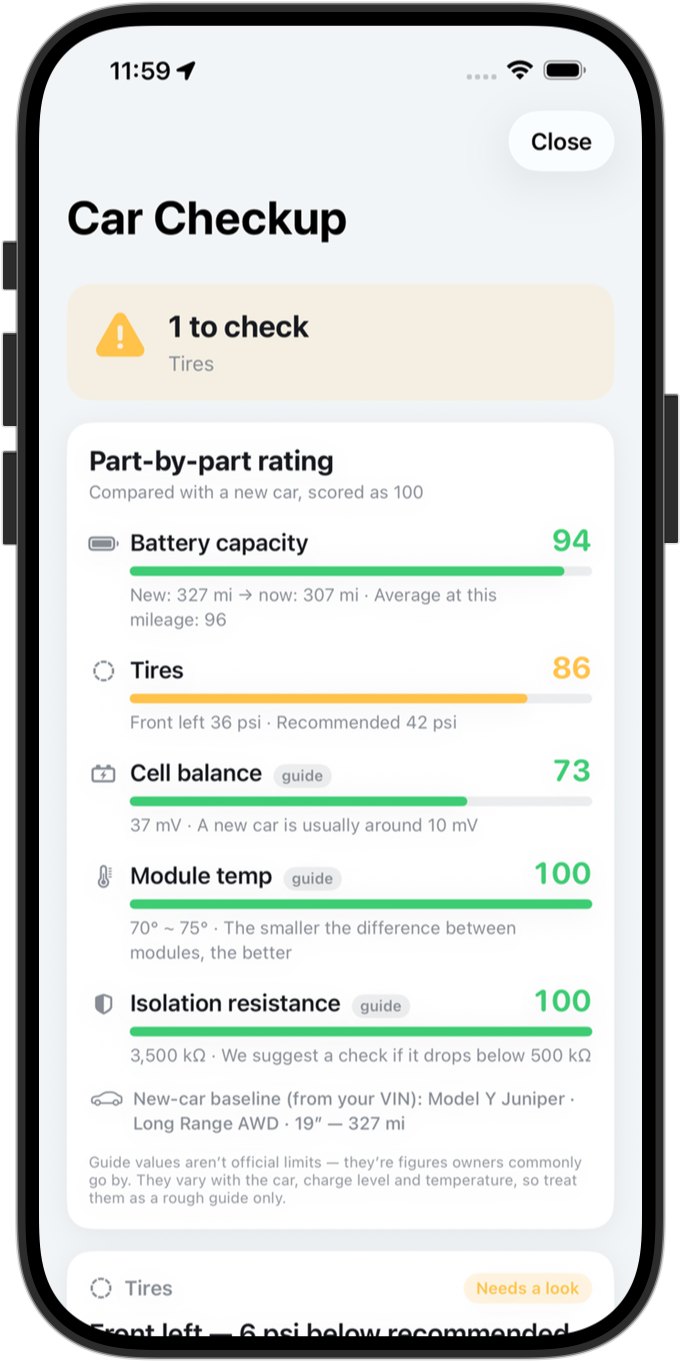
Tap Car Checkup at the top of My Car Info. Instead of bare numbers it gives a verdict: a one-line summary at the top, and each item marked As expected, Needs a look or Car warning.
Part-by-part rating: scores battery capacity, tires, cell balance, module temperature and isolation resistance with a new car as 100. Battery capacity compares today's full-charge range with the car's official (EPA) range when new (measured at 50% charge or more). The new-car baseline is estimated from your car's spec (model, trim, factory wheels, year) and shown on screen — tap it to pick a different one. Tires are compared with the recommended pressure. Cell balance, module temperature and isolation resistance have no official limits, so they're scored against guide values owners commonly use; cells and modules are only measured while the car is parked.
Tires: each wheel is compared with the recommended pressure the car itself reports. If one is low it tells you how many psi to add and whether the cold may be the cause; if the car has raised a pressure warning it shows Car warning. Right after a drive, when pressures read high, it says so first.
Battery health: the part unavailable while cold, cell-voltage spread, module temperature and insulation resistance, each with a line on what it means, plus cell and pack voltage, current, lifetime energy and lifetime efficiency. Software: current version, update progress, the versions other TeCluster cars are on and release notes.
The app cannot read the cause of the car's warning lights, so it never says 'normal' or 'safe' - it only compares readings with reference values. For an exact diagnosis, visit a service centre. On the Free plan you see what the checkup would tell you and a See the Connected plan button.
10. After-blow (Connected plan)
After you park and the A/C turns off, the fan dries the evaporator to prevent odour and mould. Turn it on under Settings → After-blow and choose 1, 3 or 5 minutes.
With Only on days the A/C was used it runs only when the compressor ran. Your set temperature is restored afterwards; each run uses about 0.1 kWh.
A registered virtual key is required. The app does not need to stay open, and it runs at most once every 30 minutes per car. Our server sends the on/off commands to the car directly, so it never gets in the way of your phone key.
It may not run where your phone or car has a weak internet connection (underground garages, inside buildings). To make sure the climate is never left running, it only starts when it can confirm the turn-off command will get through. It also doesn't run while someone is still in the car.
10-1. Vehicle Controls (Connected plan)
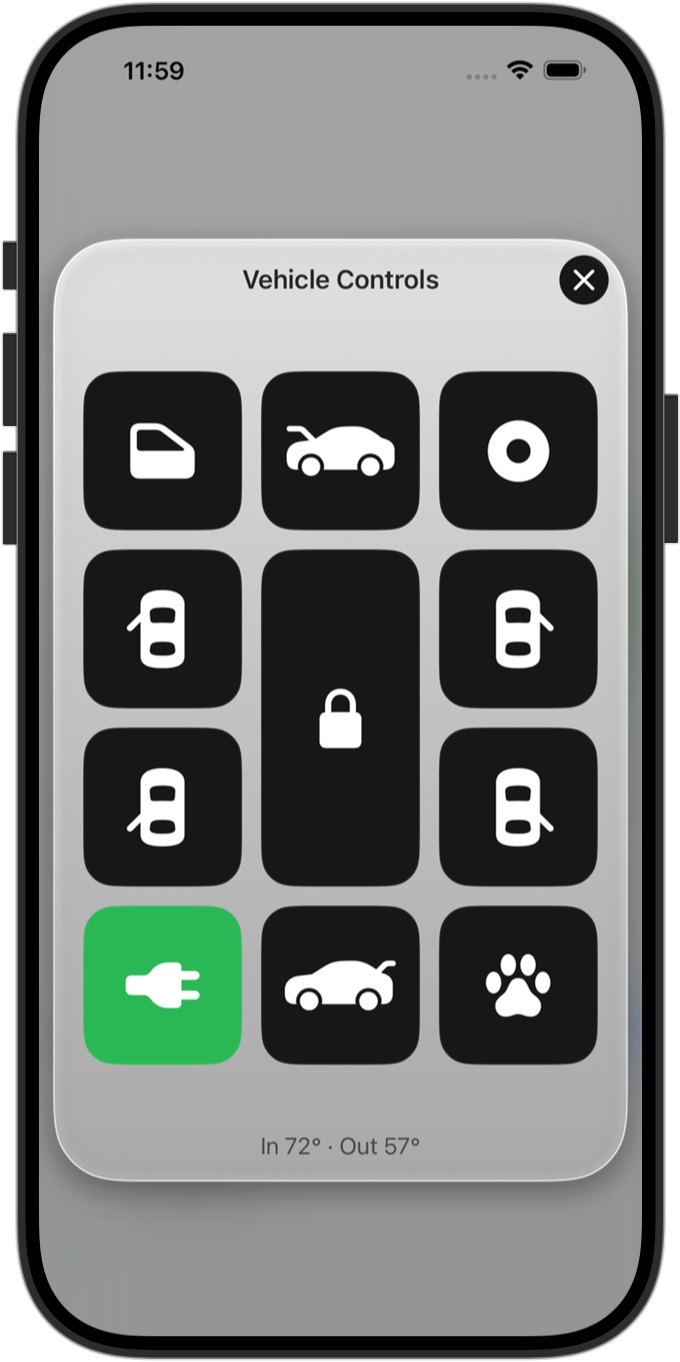
While the car is parked in P, a Vehicle Controls button appears under the search and map buttons on the cluster. It opens a remote-style window with the keys laid out like the car seen from above.
Keys: lock/unlock (one key toggles), the four doors (unlatches just that door), open the frunk, open/close the trunk, charge port (while charging: stops charging and unlocks the cable; cable plugged in: unlocks the cable; empty: opens/closes the port), windows (vent/close), Sentry Mode and Dog Mode. A tap sends the command right away, with no confirmation pop-up. A lit key shows the current state (orange = open or unlocked).
It works over Bluetooth only, next to the car - commands go straight to the car with this phone's Bluetooth key (Setup Guide, section 4); there is no remote control through a server. If the phone isn't connected it looks for the car briefly, and if it can't reach it you see "Couldn't reach the car. Move closer and try again."
Not possible: closing the frunk (close it by hand), closing a trunk that isn't powered, car wash mode, folding the mirrors, moving the seats (Tesla has no command for these). Climate and temperature aren't on the remote - use the car's screen.
On the Free plan the window and keys are greyed out and can't be pressed; tap Available with the Connected plan › at the bottom to open the plans screen.
10-2. Records — charging ledger and vehicle logbook
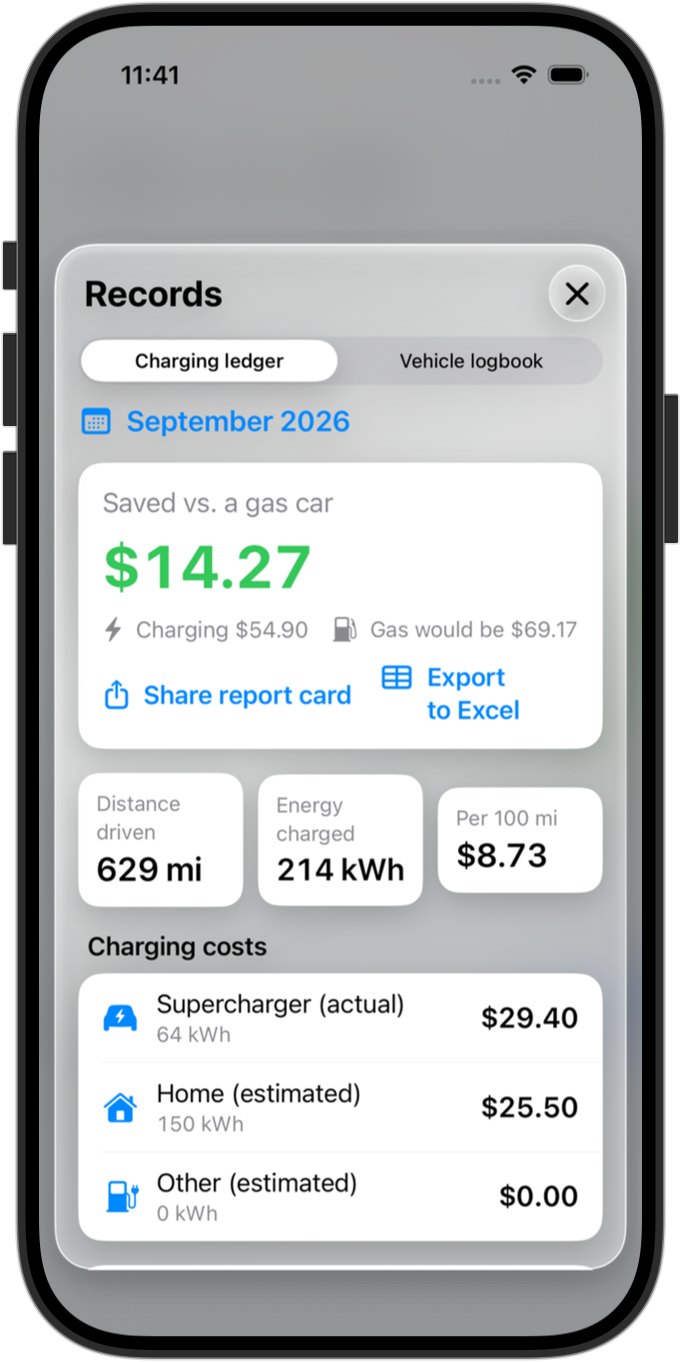
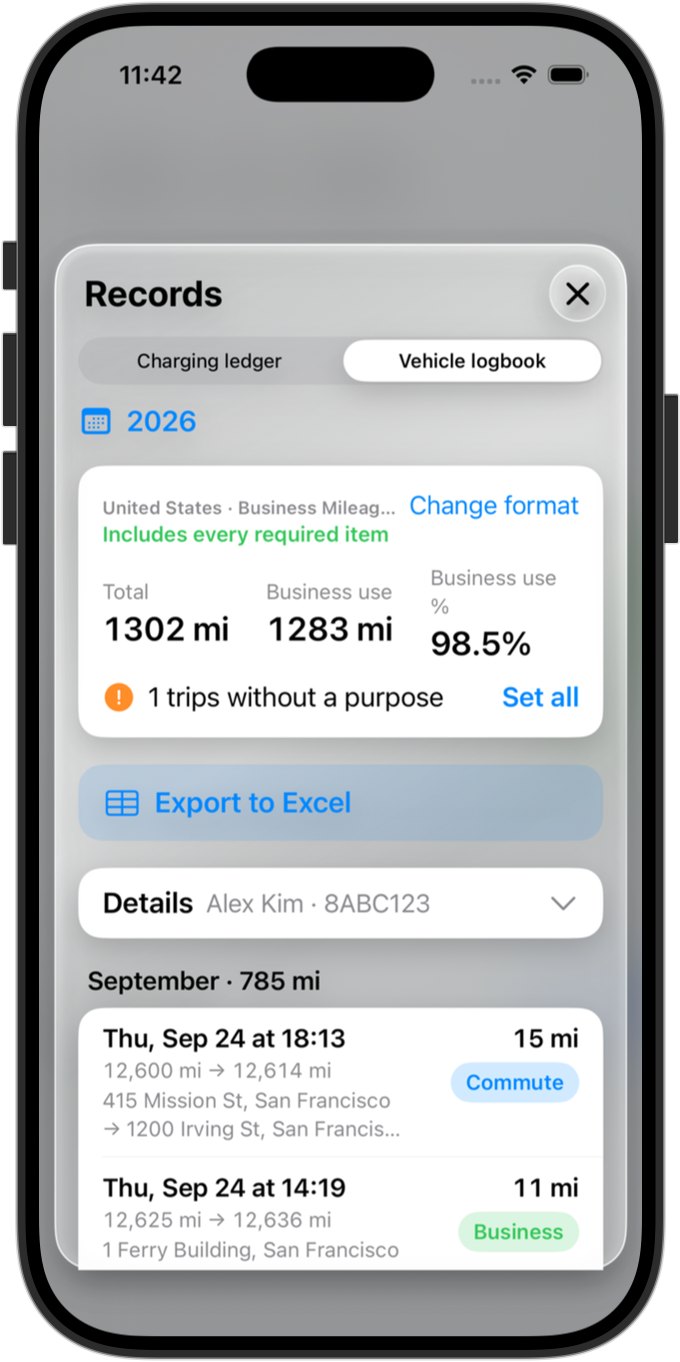
Tap Records at the top left of the cluster (or Records at the bottom of Settings) to open the Records window. Switch between the charging ledger and the vehicle logbook with the tabs at the top.
Charging ledger (Connected plan): for each calendar month — what you spent on charging, distance driven, cost per 100 km (or 100 mi), and what the same distance would have cost in a gas car. Superchargers use the actual amounts from Tesla's invoices; home and other charging is estimated from the rates you set. On the 1st at 10 a.m. local time you get last month's report as a notification, and Share report card saves it as an image.
Export to Excel builds that month's charging record — one line per Supercharger invoice (site, kWh, amount, session number) and one line per day for home and other charging. Estimated amounts are marked as estimated.
Vehicle logbook (free to view): each trip is logged while the app is on — start and end odometer, times and addresses. If the app was off, an 'Unrecorded trip' line fills the gap from the odometer.
- Tag each trip: commute, business or personal. Untagged trips can be tagged all at once, and a default purpose for new trips can be set in Details.
- Tap a trip to add the business purpose and the place or person you visited — the US, UK, Australia and others require both.
- Fill in Details: company, tax number, car model, plate, department and name. Extra fields your country's form needs (fiscal horsepower in France, the ACI rate in Italy, home-to-work distance and so on) appear below.
- Export to Excel (Connected plan) builds the year's log in your country's format, based on your iPhone's region. Change format lets you pick any of 19 countries — Korea, US, UK, Canada, Australia, New Zealand, Japan, India, Germany, France, Netherlands, Norway, Switzerland, Sweden, Taiwan, Hong Kong, Singapore, Spain, Italy — or a generic log.
The US and UK forms use miles. Where an editable spreadsheet can't count as an official logbook (Germany and Switzerland, for example), the file is marked as a reference copy at the top.
Purposes, notes, addresses and your details stay on this iPhone and are never uploaded. The logbook helps you keep records; it isn't tax advice — please review before filing.
11. Settings — Tesla
Link conditions: Tesla sign-in, Tesla permissions and Bluetooth key, one line each - plus vehicle key, telemetry, vehicle connection and plan on the Connected plan. All green when everything is fine; a fix button appears only under a line that isn't (Enroll this phone as a key, Pair via Tesla App and so on). Open Diagnostics at the bottom to see today's vehicle queries and the Bluetooth log.
Software updates: Share my car's version anonymously - only the version, model and App Store country are sent.
The This device group below is covered in section 16. After-blow has its own category in Settings (section 10).
12. Settings — Subscription
Your current plan and what it unlocks. When subscribed: monthly/yearly, days left, the renewal date, Switch to yearly and Manage subscription - extend or cancel (App Store); on Free: Subscribe. The plans screen shows Free and Connected side by side, monthly and yearly prices (monthly first), Enter a promo code, Restore Purchases, and the terms and privacy policy.
13. Settings — Navigation
 Google Maps
 Waze
Waze Apple Maps
Share to TeCluster: in Apple Maps or Google Maps, find a place, tap Share → TeCluster. TeCluster opens and guidance starts right away (on the Connected plan the same destination is also sent to the car). If TeCluster is not in the share sheet yet, enable it under More.
Follow the car's navigation (on by default): when navigation starts in the car, guidance starts on the phone too. Turn it off to see the cluster only, with no navigation — guidance you start yourself from search still works. On the Free plan, this month's handoffs (e.g. 3 of 20) are shown under the switch.
Navigation app: TeCluster built-in guidance (cluster and guidance on one screen) / Apple Maps app (tap Go once on the route preview) / Google Maps (tap Start once; a TeCluster button at the top brings you straight back) / Waze (guidance starts right away). Only installed apps are listed. When guidance ends, tap the notification to return to TeCluster. While an external app is guiding it takes over the screen and the cluster is not visible.
Map: Apple Maps. Map style: standard or satellite, traffic.
Routing: fastest or shortest, alternate routes at start (when off route, several candidates are always fetched and the one heading your way is chosen), traffic-aware rerouting while driving, road speed limit (where data exists), ask HERE for the road ahead when off route.
Speed camera warnings: on-screen warning, warning distance (100 m, 300 m, 500 m, 1 km), data sources.
14. Settings — Voice and alerts
Voice guidance on/off, lower music during guidance, volume (for the built-in guidance - an external nav app speaks with its own voice).
Push alerts (Connected): tire pressure warning. Send test notification lets you check. There are no battery or charging alerts - once you leave the car the app no longer receives vehicle data.
15. Settings — Display and language
Night mode: Auto / Always light / Always dark. Language: System, 한국어, English, 日本語, 中文, Français, Español, Deutsch, हिन्दी, Русский — maps and voice follow (map and guidance text after the app restarts). Distance (km / miles) and temperature (°C / °F) units are under Settings → Units.
16. Settings — This device
At the bottom of Settings → Tesla: Tesla permission status (Add permissions if one is missing), Sign Out of Tesla, and Delete my data - removes the car registration, this phone's Bluetooth key and the vehicle data on our server, signs you out of Tesla and returns to the first screen (Setup Guide, section 9). The app has no account of its own.
17. Plans and subscription
Free: in every country, no subscription, no expiry. Phone and car only - the Bluetooth cluster (speed, gear, power, battery, temperatures, tire pressures, odometer), phone navigation or opening your usual nav app, speed-camera alerts, and picking up destinations set in the car (20 a month, section 7). Nothing goes through a server.
Connected (optional subscription): everything in Free, plus unlimited destination sync - the phone picks up every destination set in the car, and a destination picked on the phone (search or share) is sent to the car's navigation automatically (tap Start on the car; if the car is asleep it is sent when it wakes). Also Car Checkup (9-1), Vehicle Controls (10-1), After-blow (10) and the turn-signal display (it comes only from Tesla's server telemetry).
On the Free plan, Connected features are greyed out with Available with the Connected plan ›. When a subscription ends, the app is never locked - it simply carries on as Free.
Once you leave the car the app receives only what after-blow and battery health need. There is no battery level away from the car and no charging or battery alerts.
Prices: US$3.99 a month or US$39.99 a year; in Korea ₩1,900 a month or ₩19,000 a year. Actual prices are set by the App Store in each country. Car Checkup opens once in full, even on the free plan. Cancel anytime in iOS Settings → your name → Subscriptions.
18. Troubleshooting
No vehicle data: check the Bluetooth key line under Settings → Tesla → Link conditions. If it isn't green, pair again with Enroll this phone as a key under that line (Setup Guide, section 4); if the car's software is below 2024.38, update the car. On the Connected plan also check the virtual key and whether the car is asleep.
Destinations from the car don't arrive: make sure Bluetooth shows Connected, or on the Connected plan that the virtual key is registered. Follow the car's navigation (Settings → Navigation) must be on, and on the Free plan check under it that this month's 20 handoffs aren't used up. Telemetry stops if the car has no internet.
The car doesn't start guiding to a destination sent from the app: tap Start on the car's screen (Tesla policy).
Vehicle Controls do nothing: they work over Bluetooth only, within a few metres of the car. Check that the Bluetooth key line under Link conditions is green. Greyed-out keys mean the Free plan (Vehicle Controls is a Connected-plan feature). Closing the frunk, car wash mode, folding mirrors and moving seats are not supported.
Speed differs from the car: it calibrates within the first minutes. With Bluetooth connected the car's speed is used directly.
No route: check the phone's internet connection. The app retries automatically once it is back.
For anything else, email us with the contents of Settings → Tesla → Link conditions → Diagnostics. We reply within two business days.